
The Role Manager feature allows you to edit and add new roles as well as add and remove both default capabilities and custom capabilities from roles. It is an extremely powerful system.
Any changes you make to users and roles using this feature are permanent changes. This means that if you deactivate or uninstall this plugin, the changes won’t revert to their previous state. This plugin merely provides a user interface for you to make changes directly to your WordPress database. Please use this feature wisely.
Editing/Adding Roles
This feature can be both a blessing and a curse, so we’re going to ask that you use it wisely. Use extreme caution when assigning new capabilities to roles. You wouldn’t want to grant Average Joe the edit_plugins capability, for example.
You can find the settings page for this feature under the “Members” menu. It will be labeled “Roles”.
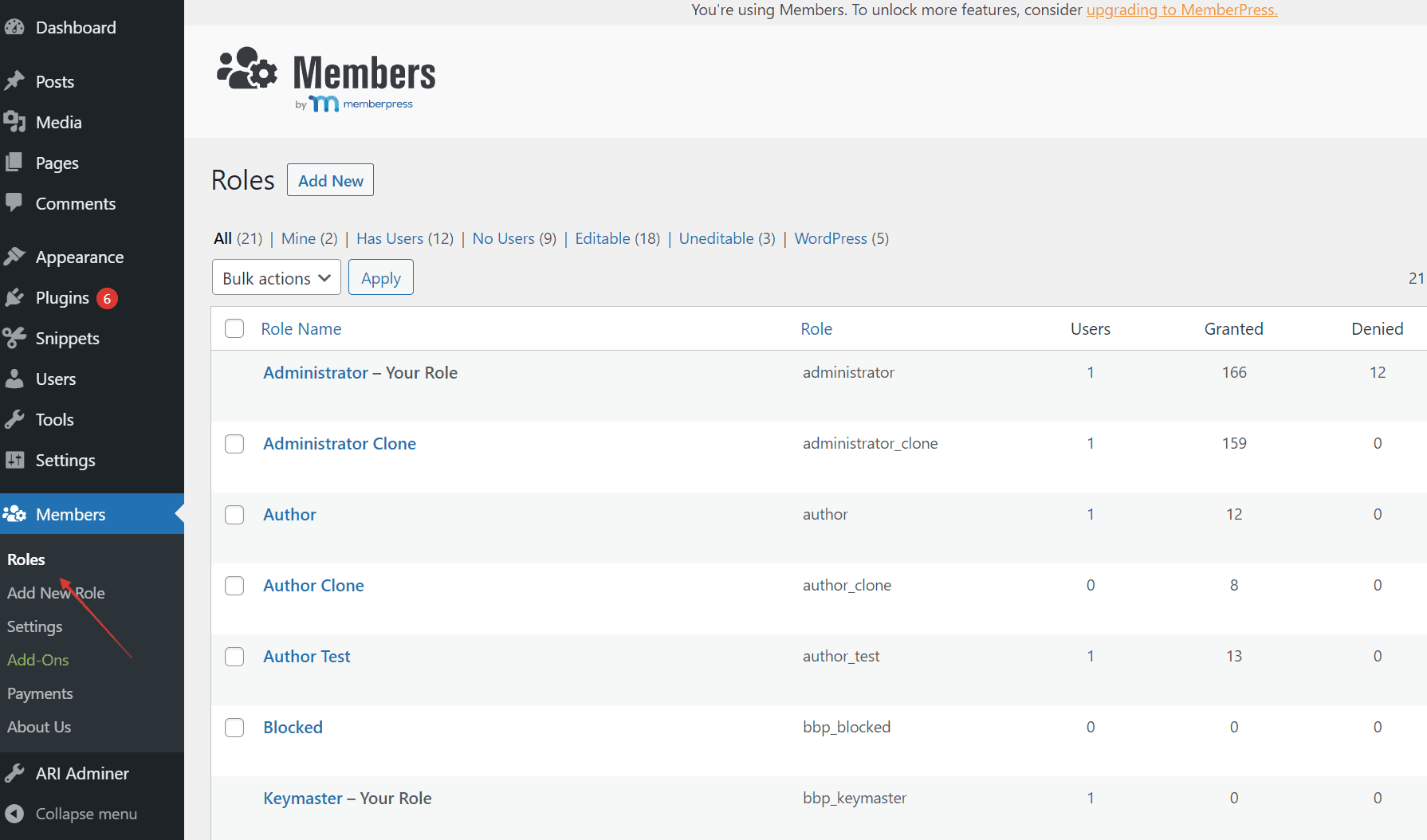
When clicking on the menu item, you’ll be taken to a screen similar to the edit post/page screen, only it’ll be for editing a role.
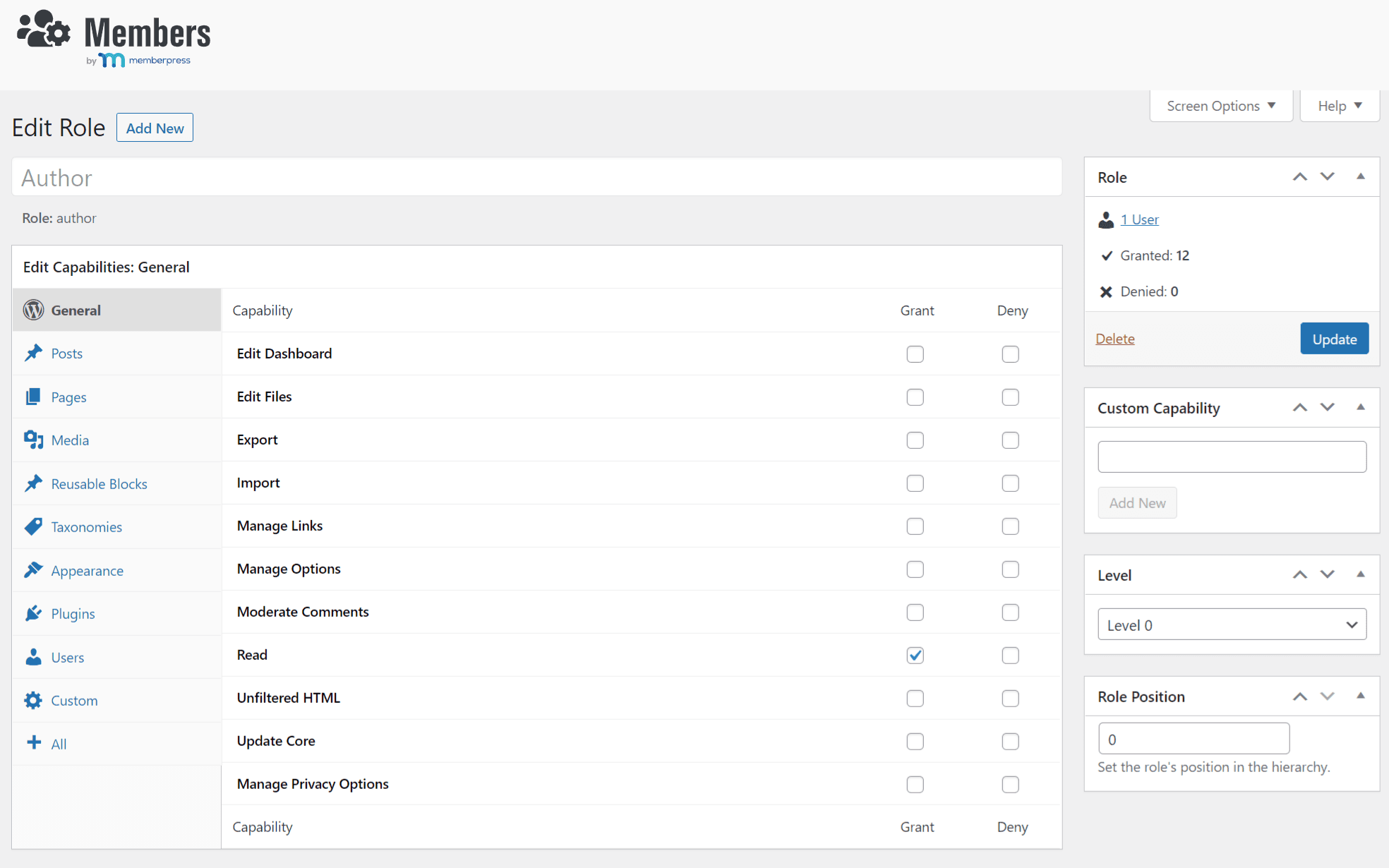
In the “Edit Capabilities” box on that screen, you simply have to tick the checkbox next to the capability you want to grant or deny. Use the Filter capabilities search box to find a capability quickly, then click Update to save.
Reading the Roles list
The Roles screen lists every role with three numbers:
- Users: how many users have the role. Click it to see them.
- Granted: how many capabilities the role is granted.
- Denied: how many capabilities the role is explicitly denied.
So “Granted: 61” on Administrator means 61 capabilities, not 61 users.
Some roles show “This role is not editable.” That means another plugin locks the role, or your own role doesn’t have permission to edit it. Your own role and the site’s default role (the one new users get) can’t be deleted.
Adding a custom capability
Use the Custom Capability box on the edit role screen to add a capability that isn’t in the list yet:
- Type the name, using lowercase letters, numbers, and underscores (for example,
view_vip_content). - Click Add New. It appears in the Custom tab, already ticked as Granted.
- Click Update to save the role.
A new capability doesn’t do anything by itself. Something has to check for it, like the [members_access] shortcode, the Block Permissions add-on, or code that calls current_user_can(). See the Capabilities Guide for how plugins and post types use capabilities.
Grant, deny, or neither?
Every capability can have one of three “states” for a role. The role can be granted, denied, or simply not have a capability.
- Granting a capability to a role means that users of that role will have permission to perform the given capability.
- Denying a capability means that the role’s users are explicitly denied permission.
- A role that is neither granted nor denied a capability simply doesn’t have that capability.
Note: When assigning multiple roles to a single user that have a conflicting capability (e.g., granted publish_posts and denied publish_posts cap), it’s best to enable the denied capabilities override via the Members Settings screen. This will consistently make sure that denied capabilities always overrule granted capabilities. With this setting disabled, WordPress will decide based on the last role given to the user, which can mean for extremely inconsistent behavior depending on the roles a user has.
Tip: Leave capabilities unset unless you have a reason to deny them. “Deny” is only useful when a user has more than one role and you need one role to override another. Denying lots of capabilities on a single role can lock its users out of things you didn’t expect, including logging in to the dashboard. See Explicitly Deny Capabilities.
My changes don’t stick, or keep reverting
Members saves your changes straight to the WordPress database the moment you click Update. If a role’s capabilities change back on their own, another plugin is almost always re-creating or resetting that role, often when it loads or updates. To find it:
- Make the change again and note the time.
- Deactivate your other plugins one at a time (on a staging copy if you can), and check whether the change still reverts.
- When you find the plugin, check its own settings. Many plugins that add roles, like learning, forum, or document plugins, have their own “allowed roles” settings that override what you set in Members.
If you lose access to a plugin’s settings screen after it adds new capabilities, grant those capabilities to the Administrator role in Members.
Uninstalling Members
Your roles and capabilities stay exactly as they are if you deactivate or delete Members, because they live in WordPress itself. To undo your changes before you remove Members:
- Delete your custom roles by hovering over each one on the Roles screen and clicking Delete. Users who only had that role are moved to your site’s default role (usually Subscriber), and users with other roles simply lose it. The Users link next to each role shows who has it.
- Reset the default roles with Reset Roles, which also removes any custom roles created with Members.
Want a copy first? Export your roles so you can bring them back later.