The widgets component provides easy-to-use widgets for your site. They can be used in any WordPress widget area (provided by your theme). Currently, there’s the Login Form and Users widgets.
Adding a Members widget
Go to Appearance → Widgets, add a block to your sidebar, search for Legacy Widget, and pick Members: Login Form or Members: Users from its dropdown. The Members widgets are “classic” widgets, so they only show up through the Legacy Widget block.
Using a block theme? Block themes (like Twenty Twenty-Five) don’t have widget areas. Add the [members_login_form] shortcode with a Shortcode block instead, in a page or in your theme’s template parts with the Site Editor.
Login Form widget
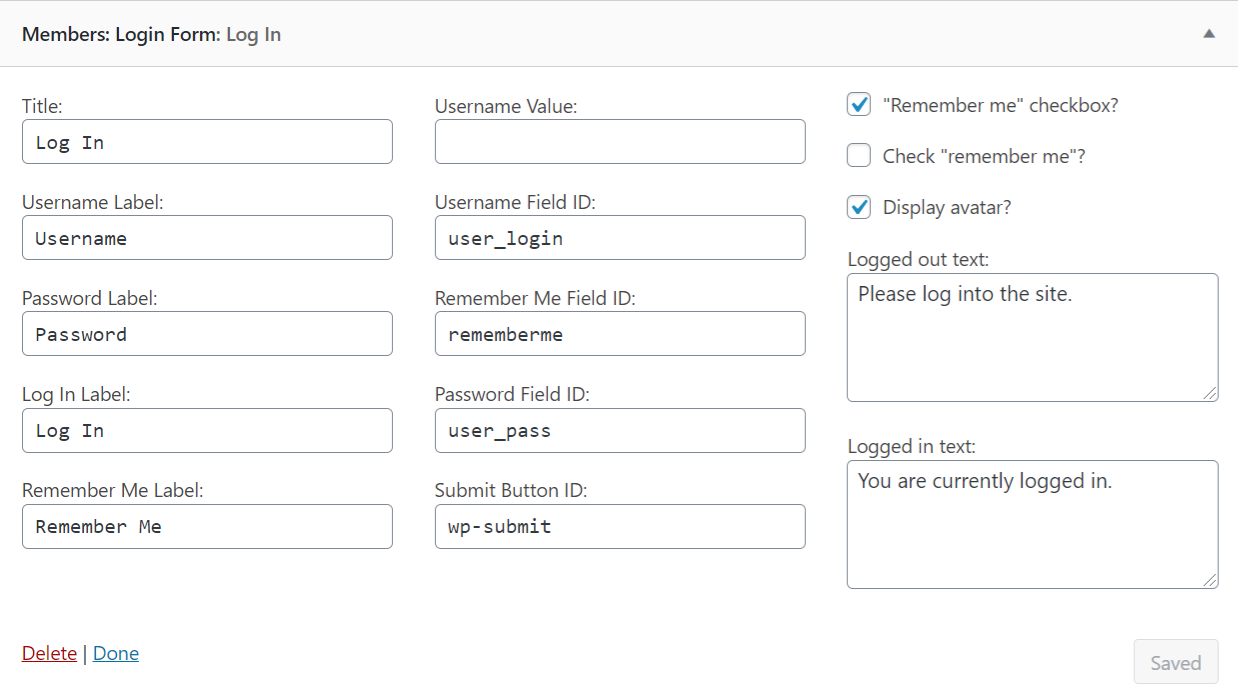
The Login Form gives you a login form. It’s a mixture of a text widget and login form. It can also show your avatar.
You can set:
- a title, plus separate text for logged-in and logged-out visitors (shortcodes work here);
- the field labels and button text;
- whether to show the “Remember Me” box;
- whether to show the logged-in user’s avatar.
After logging in, users go back to the page they logged in from. If a login fails, the user comes back to the same page and sees an error message, just like with the [members_login_form] shortcode. The widget also works with Wordfence and Two Factor two-factor authentication.
Users widget
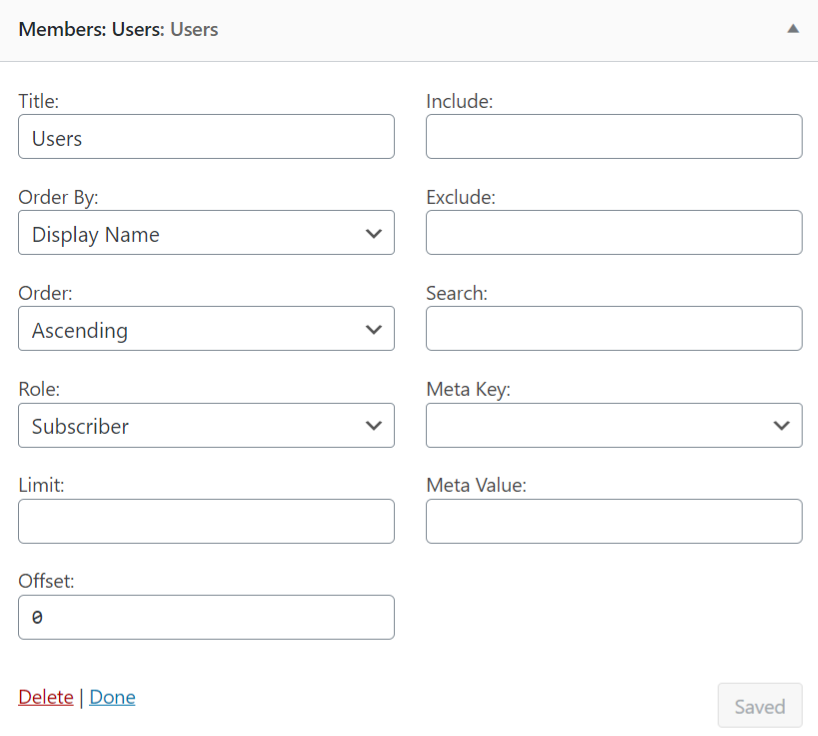
The Users widget allows you to list users in any widget area. You can filter by role, choose how many to show and how to sort them, include or exclude specific users, and match a search term or a user meta value. It’s based off the get_users() function, so all of the parameters are the same.
The list is public, so anyone who can see the sidebar can see the names you list. If you need member profiles or a searchable member directory, see Members and MemberPress.