
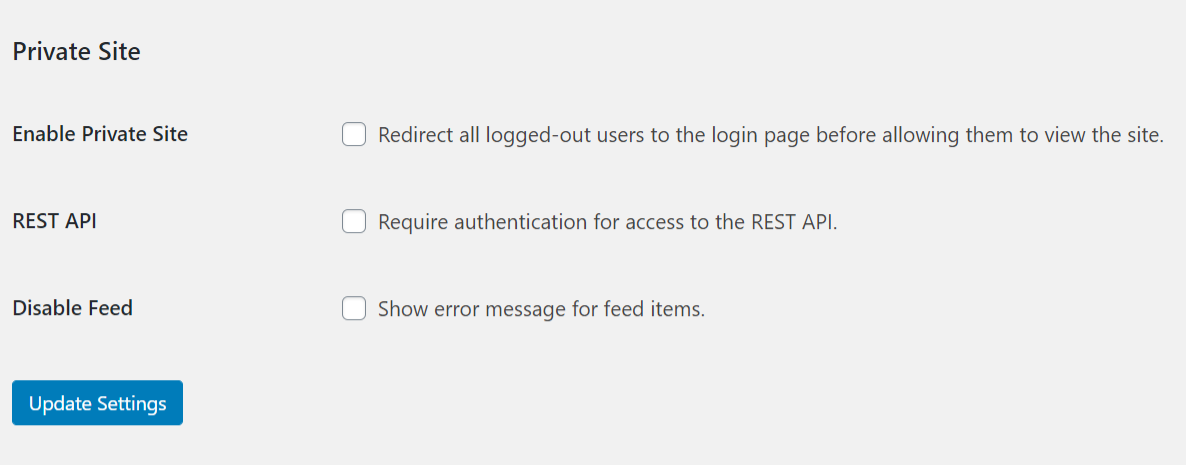
The Private Site feature makes sure that only logged-in users can see anything on your site. Turn it on under Members → Settings → Private Site → Enable Private Site.
If a user visits your site and is not logged in, they are immediately redirected to your login page. That’s wp-login.php by default, or your custom login URL if you use a plugin that changes it, like WP Ghost or WPS Hide Login. After logging in, they’re sent back to the page they asked for.
Pages that stay reachable
These always work for logged-out visitors, so they can still get in:
- Your login, lost password, and registration pages (including custom login URLs)
- The WooCommerce My Account page, if WooCommerce is active
- BuddyPress registration and activation pages, if BuddyPress is active
Everything else is private, including your home page. If you want a public home page or landing page, see Making a page public below.
Just building your site?
If you only want to hide your site while you work on it, a coming-soon page is friendlier than a login screen. The free SeedProd plugin shows visitors a “coming soon” or maintenance page while you keep working.
Selling memberships?
Don’t use Private Site on a site that sells access. It also blocks your sales, pricing, and checkout pages. Protect your members-only content with MemberPress Rules instead, and keep your sales pages public.
Feeds
Tick Disable Feed (“Show error message for feed items”) to replace the content of every item in your RSS feed with the Feed Error Message. This works on its own too, even if Private Site is off.
The REST API option
Require authentication for access to the REST API blocks every request to your site’s REST API (/wp-json/) from visitors who aren’t logged in. They get a “You are not currently logged in.” error. Like the feed option, it works even if Private Site is off.
Some features rely on the REST API for logged-out visitors, so this option can break them:
- Mobile apps that log in through the REST API (for example, event check-in apps)
- Calendars and filters that load results without reloading the page
- Forms that submit through the REST API
If something stops working for logged-out visitors, turn this option off to test. To keep it on but allow one plugin’s REST routes, add a snippet like this one (the free WPCode plugin is an easy way to add it), replacing /fooevents with the start of that plugin’s route:
add_filter( 'members_is_private_rest_api', function ( $private ) {
    $uri = isset( $_SERVER['REQUEST_URI'] ) ? $_SERVER['REQUEST_URI'] : '';

    return ( false !== strpos( $uri, '/wp-json/fooevents' ) ) ? false : $private;
} );
This is a different setting from Hide Protected Posts from WP REST API, which only hides posts protected with Content Permissions.
Making a page public
There’s no setting to make individual pages public, but developers can do it with the members_is_private_page filter. For example, to let anyone see a page with the slug pricing:
add_filter( 'members_is_private_page', function( $is_private ) {
    if ( is_page( 'pricing' ) ) {
        return false;
    }

    return $is_private;
} );
To make only your home page public:
add_filter( 'members_is_private_page', function( $is_private ) {
    return is_front_page() ? false : $is_private;
} );
Not comfortable with code? Leave Private Site off and protect the pages that should be private with Content Permissions instead.
Multisite
On a network, logged-in users who aren’t members of a private site see a message saying they don’t have access, with links to the sites they do belong to. See Multisite.